How to make the ChatGPT millionaire meme video
Step-by-step: make the ChatGPT millionaire meme video as yourself, or as your pet. Upload a photo, generate, download. No CapCut.
Last updated: 2026-10-21
This is a step-by-step tutorial for the homepage generator. There are two recipes: put a person in the Get a job meme, or put a pet in it. Same joke either way — someone asks ChatGPT how to become a millionaire in 30 days, ChatGPT says “Get a job.” You never type that prompt yourself.
Each clip is 12 seconds. Sign in first. One clip is 50 credits; packs start at $4.90 on pricing. If generation fails on the provider side, credits come back. Closing the tab does not stop a job that already started.
Not financial advice. This site is not affiliated with OpenAI.
Tutorial 1 — Person version
Goal: your face (or another adult who agreed) sits in the clip, holds the phone, and mouths Get a job.
These stills are from the homepage example video — that is the kind of clip you are making.
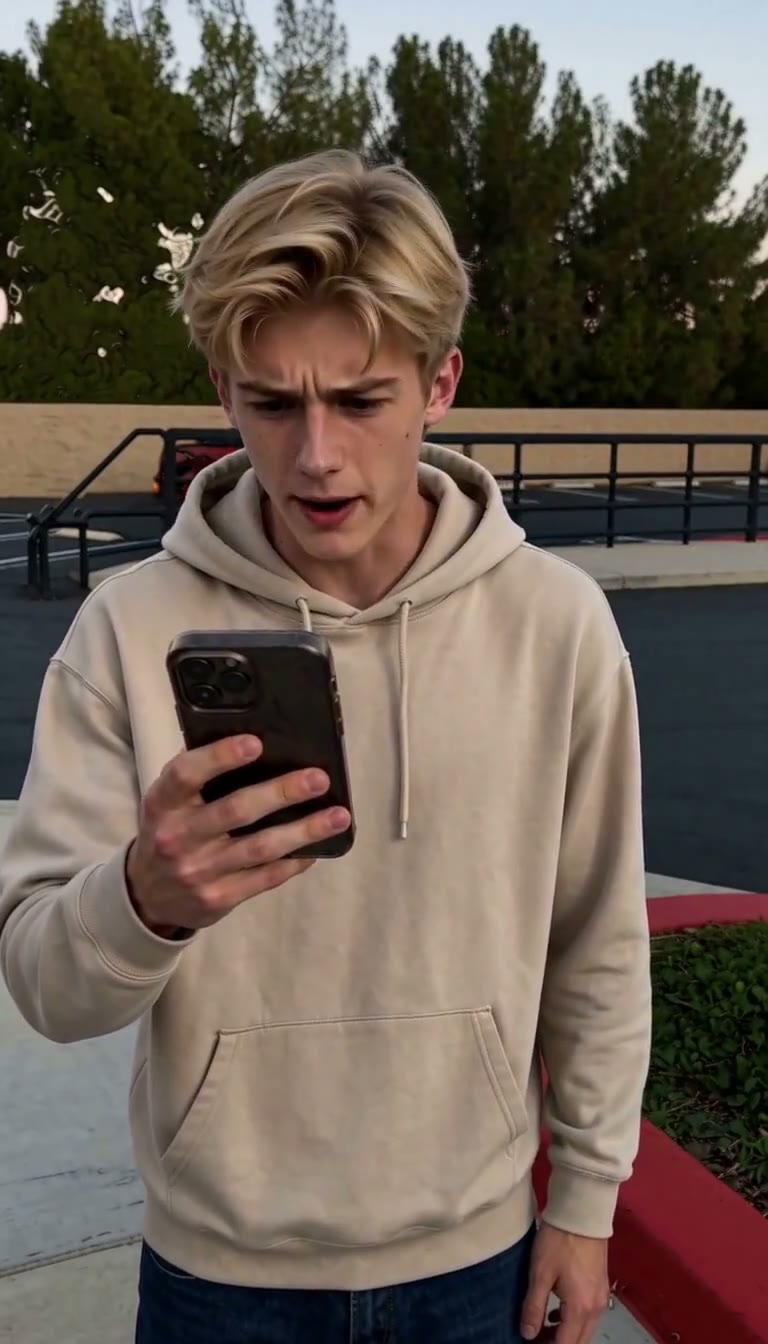
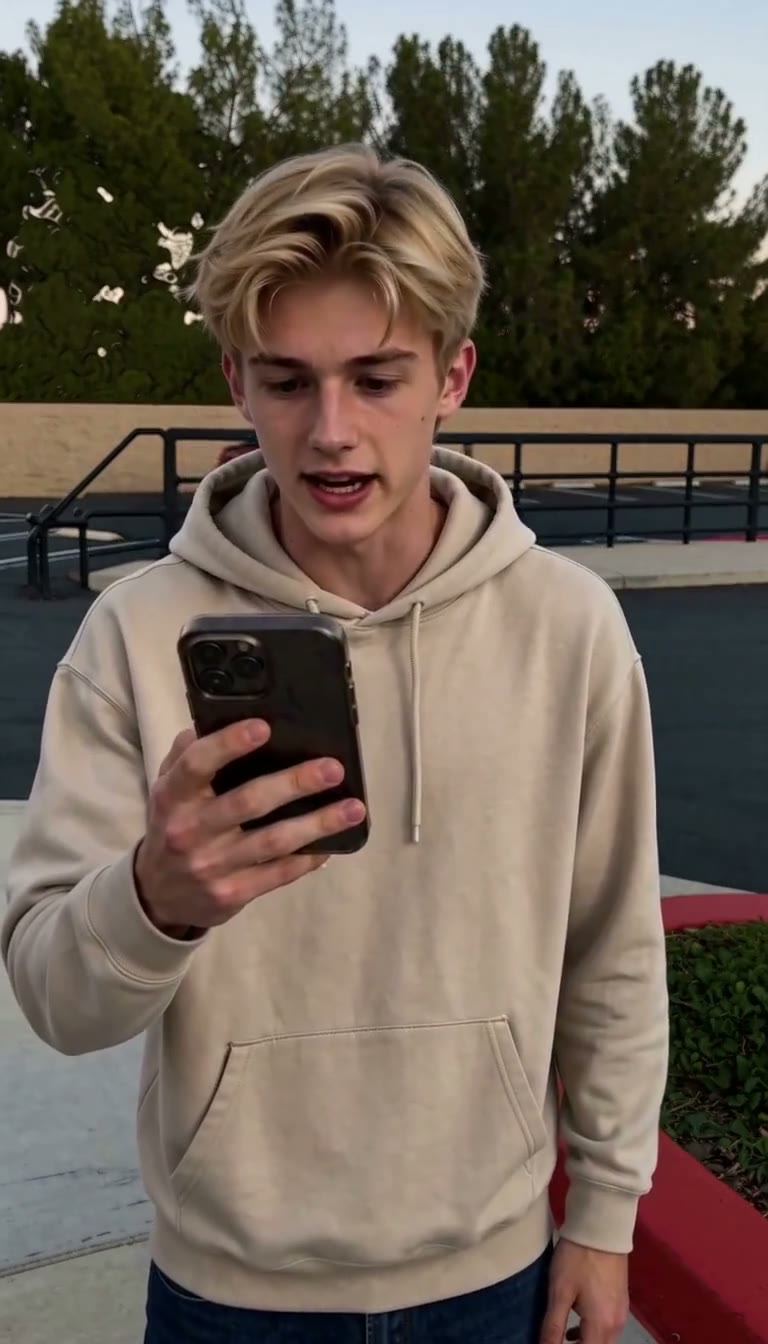
Step 1 — Open the studio
Go to the homepage generator.
Step 2 — Choose A person
Under Cast, leave A person selected. Do not use Pet version for a human photo.
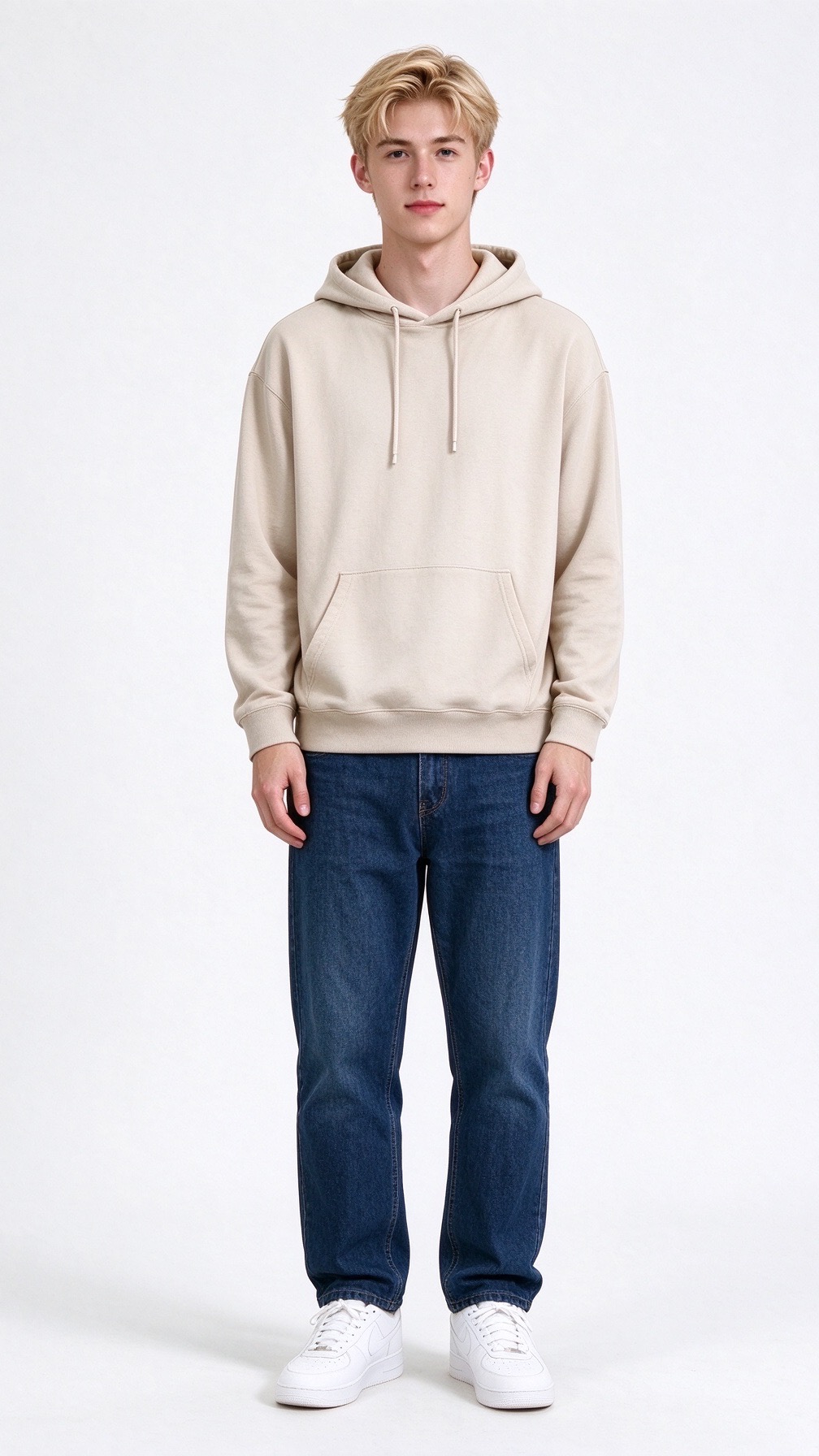
Step 3 — Upload the portrait
Use one still of a real adult:
- Face toward the camera, even light, eyes open
- Enough of the body that clothes can show (avoid a tiny head crop)
- One person in the frame
That face is who appears for the full 12 seconds. A standing, well-lit photo like the first still above is enough.
Step 4 — Background (optional)
You can generate with the portrait only. If you want a different place behind them, upload a wide photo with nobody else in it.
Step 5 — Pick the shape
9:16 for TikTok, Reels, and Shorts. 16:9 if you need landscape.
Step 6 — Generate
Sign in, confirm you have the right to use the photo, then hit generate. Wait for the job to finish (often several minutes).
Step 7 — Check and download
Play the whole file before you post:
- It still looks like the same person
- They are using a phone, then reacting
- The Get a job line is the original audio, and the mouth roughly follows it
Then download. You do not need CapCut for a first post.
Tutorial 2 — Pet version
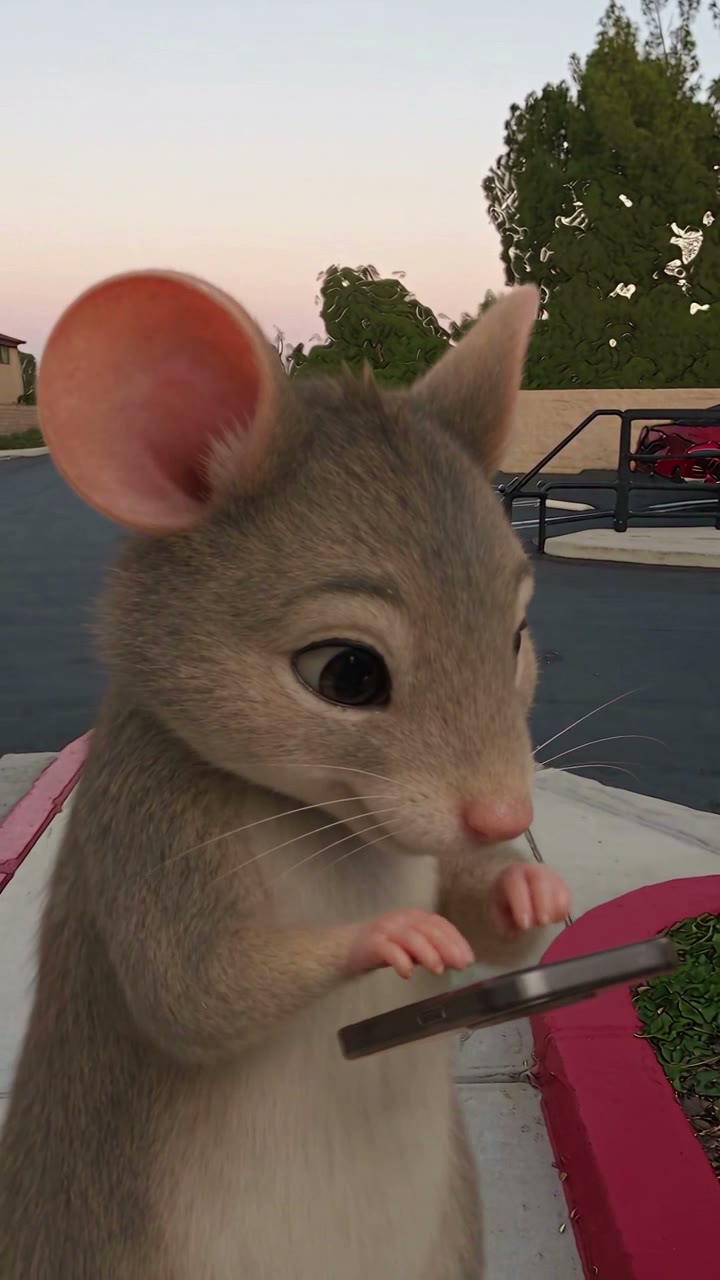
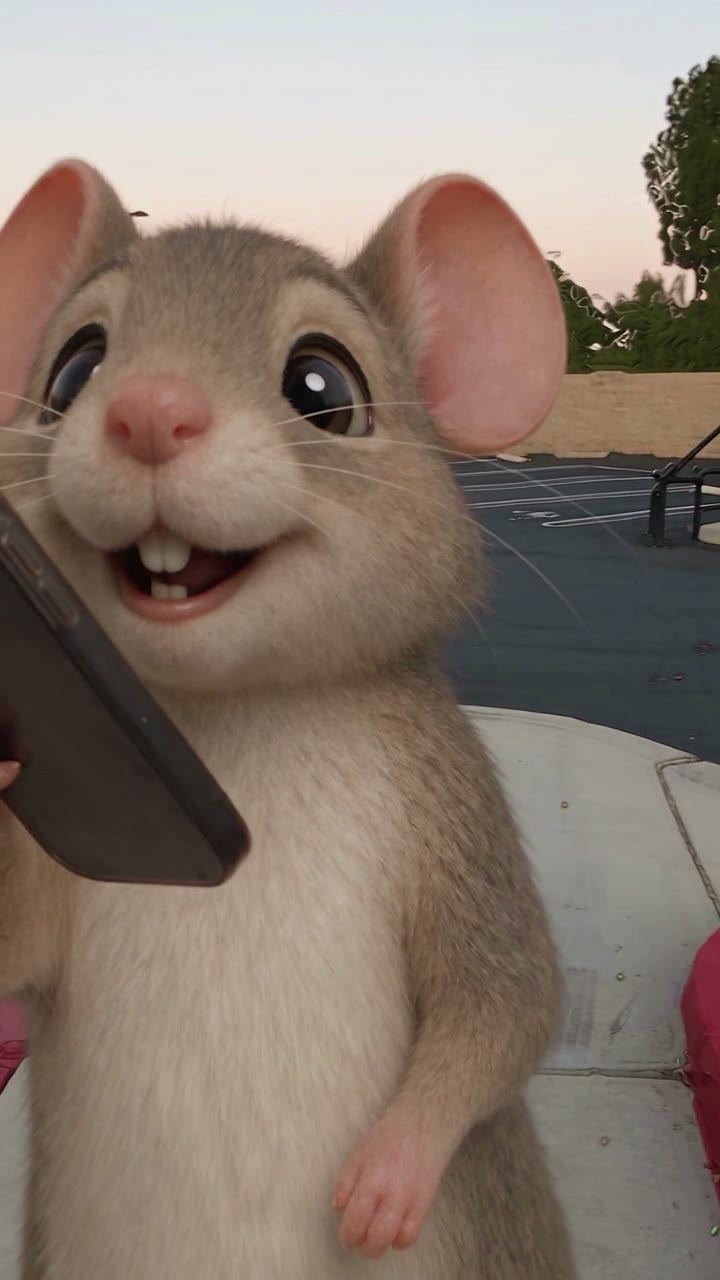
Goal: your pet is the one on the phone, standing up through the same Get a job beat.
These stills are from the default animal clip the generator follows. Your pet photo replaces that character; the phone, timing, and Get a job audio stay.
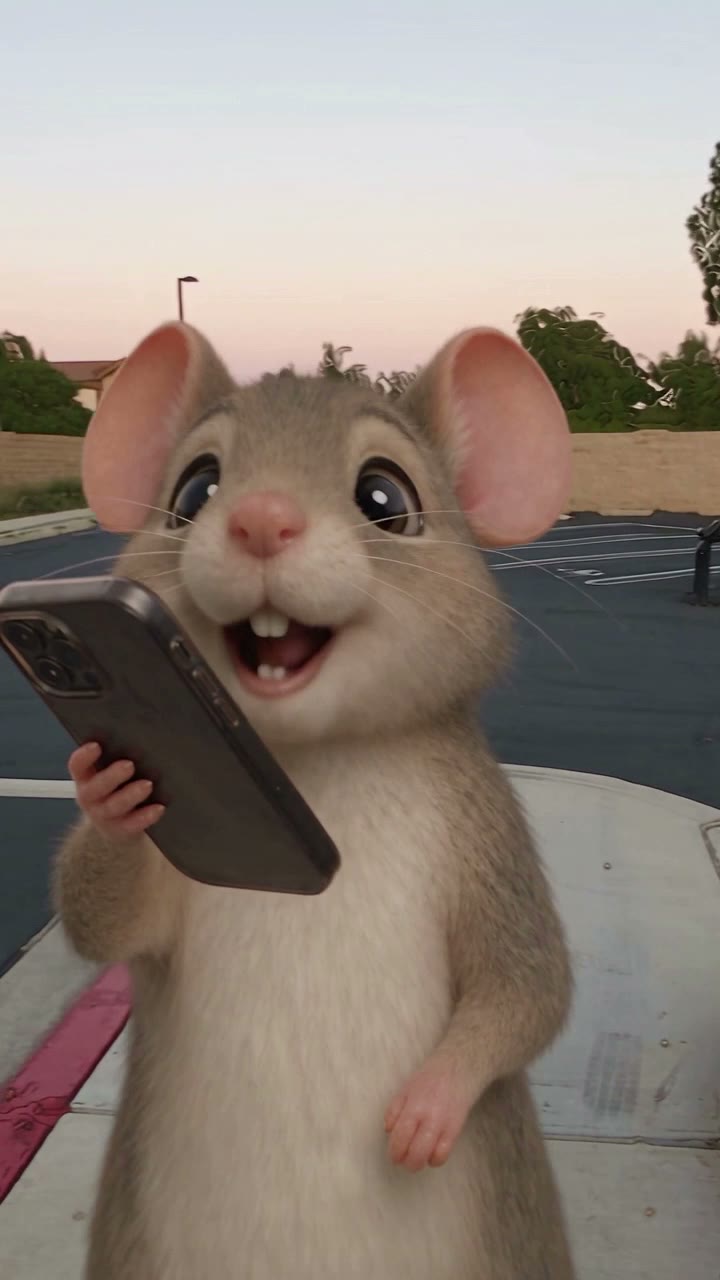
Step 1 — Open the studio
Same homepage generator.
Step 2 — Switch to Pet version
Under Cast, choose Pet version. Do not leave A person selected.
Step 3 — Upload the pet photo
Use one still of the animal:
- Face and fur easy to see
- Species and markings obvious (spots, color, unique features)
- Prefer a full-body or chest-up shot over a tight snout crop
That is the pet that should show up for the whole clip. Use a real photo of the animal — face and fur visible, not a tiny crop. The stills above are the default animal clip; your upload replaces that character.
Step 4 — Background (optional)
Skip this to keep the default scene. Or upload a place with no extra people.
Step 5 — Pick the shape
Same as the person tutorial: 9:16 for short-form, 16:9 for landscape.
Step 6 — Generate
Sign in, confirm permission to use the photo, then generate. Wait it out.
Step 7 — Check and download
Play the whole file:
- It still looks like your pet, not a generic animal
- The pet stands, holds the phone with paws, looks at the screen, then looks at the camera
- Same original Get a job audio; the face plays along
Then download.
If a run looks off, change only one thing (a sharper photo, or skip the background) and generate again.